Arch Linux Installation


I loved this one! 🎉
and it took time
and lots of reading
and lots of experimenting
This challenge exposed me to the Arch Wiki. It required me to slow down, read, be patient, read more, read a page that lead to another page to read. It was very nourishing. It brought me closer to the skill of reading documentation and building confidence in figuring things out by reading, analyzing, and trying. And it built resilience. So I see this chapter of the roadmap I am following very formative. I also really enjoyed it.
I also got to learn about a variety of new topics!
The goal was to install Arch Linux manually on hardware with these requirements:
- encrypted drive
- using LVM
- Systemd centric
I learned of the different stages of the installation and that there were multiple options to choose from. I made a choice for each stage and learned how to implement my component of choice. I realized that after the installation there was hardware-specific components to figure out. I did some reading and analysis before the installation and realized that it would be more efficient to continue figuring it out with Arch already installed on the hardware. I practiced a few times with virtual machines and then moved on to a Lenovo Thinkpad X1 Carbon Gen 7.
Arch Linux Installation
Partitioning the disk
For my encrypted drive + lvm setup, I created:
- 1 partition for the bootloader
- 1 partition to be encrypted
Inside the decrypted partition I created
- a physical volume
- a volume group
- a logical volume for swap
- a logical volume for root
- a logical volume for home
- a volume group
Network Management
I initially chose systemd-network + systemd-resolved, following the Systemd-centric requirement. iwd was required for using Wifi with systemd-networkd. After the hardware installation I was setting up Protonvpn and found out that it requires NetworkManager, so I switched over to it. For Wifi I stayed with iwd and configured NM to work with it. So I ended up using:
- NetworkManager
- iwd
- systemd-resolved with DNS over TLS
Boot Process
I chose UEFI over BIOS and I chose GPT over MBR.
I declared the appropriate hooks for the initcpio, including:
- sd-vconsole, to use Dvorak
- sd-encrypt
- lvm2
I went with systemd-boot for my bootmanager and set the appropriate configuration, including:
- declaring the encrypted partition
- declaring the appropriate logical volume as root
- declaring the logical volume used for swap as resume
- very important for saving battery and making the laptop usable
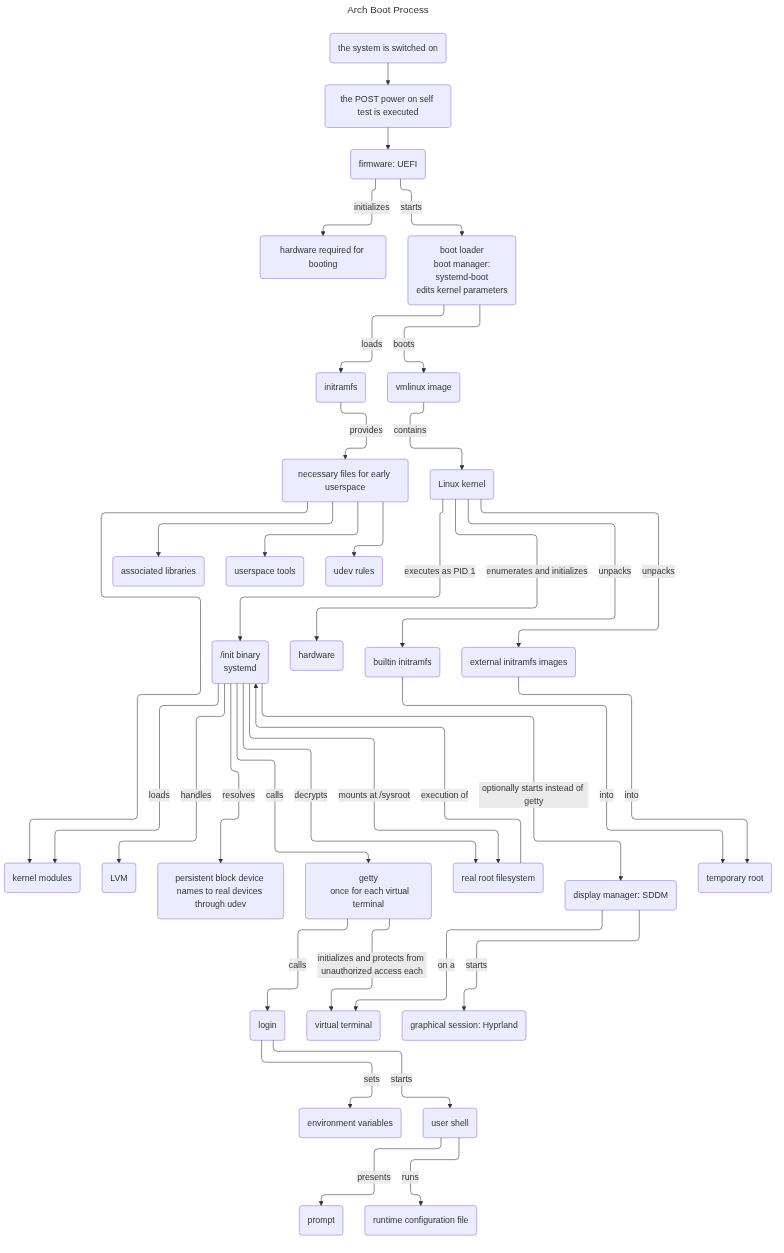
So for my setup, the process is as follows:
Post Installation
- I configured sudo to allow members of wheel to run commands with elevated privileges.
- I set a delay for password failed attempts.
- I created a user and added it to the wheel group.
- I installed a Nerd Font and fonts for emoji support.
- I installed gtk4 and created a systemd-timer that would automatically switch dark and light themes at my desired time.
Graphical Environment
I chose Hyprland. I did not prioritize configuring it extensively or personalizing the appearance. I prioritized setting up a system that I could use to get work done, which included:
- terminal emulator = Ghostty
- automatically launched on login in workspace 1
- browser = Chromium
- password manager = KeepassXC
- vim-like keybindings for switching between windows
- keybindings for launching the terminal and the browser
- Waybar
With this setup I can easily and quickly launch the tools I need to work, organize them in workspaces and switching between them without friction.
Power Management
I looked into a variety of tools. I chose auto-cpufreq as it is actively maintained, popular on Github and seems to work efficiently. Other tools had not been maintained in a while, not as popular and seemed to not achieve the same results. I tried in on two laptops and noticed battery lasting longer.
Performance
I installed the appropriate drivers for my video card and ensured hardware acceleration was working. I verified that VA-API and Vulkan Video were working. I then tested a Jitsi meeting inside Chrome, sharing the screen and it went well! I was not able to configure the fan on this machine and I suspect it might be broken.
Result
I now have a machine that looks beautiful, is fast, and is optimized for my workflow. It is private, secure, and efficient. I learned about the internals of a Linux system and gained confidence in working with them. I gave myself a good tool that I can now use to continue developing my competencies in this roadmap.
